Review and register
Check your answers on the last step and send your registration.
Before you start
- Step 4, Details, is finished and step 5 is open.
Review your home, contact details, participation, listing, curb markers and hours on step 5. The example below uses a made-up address and name.
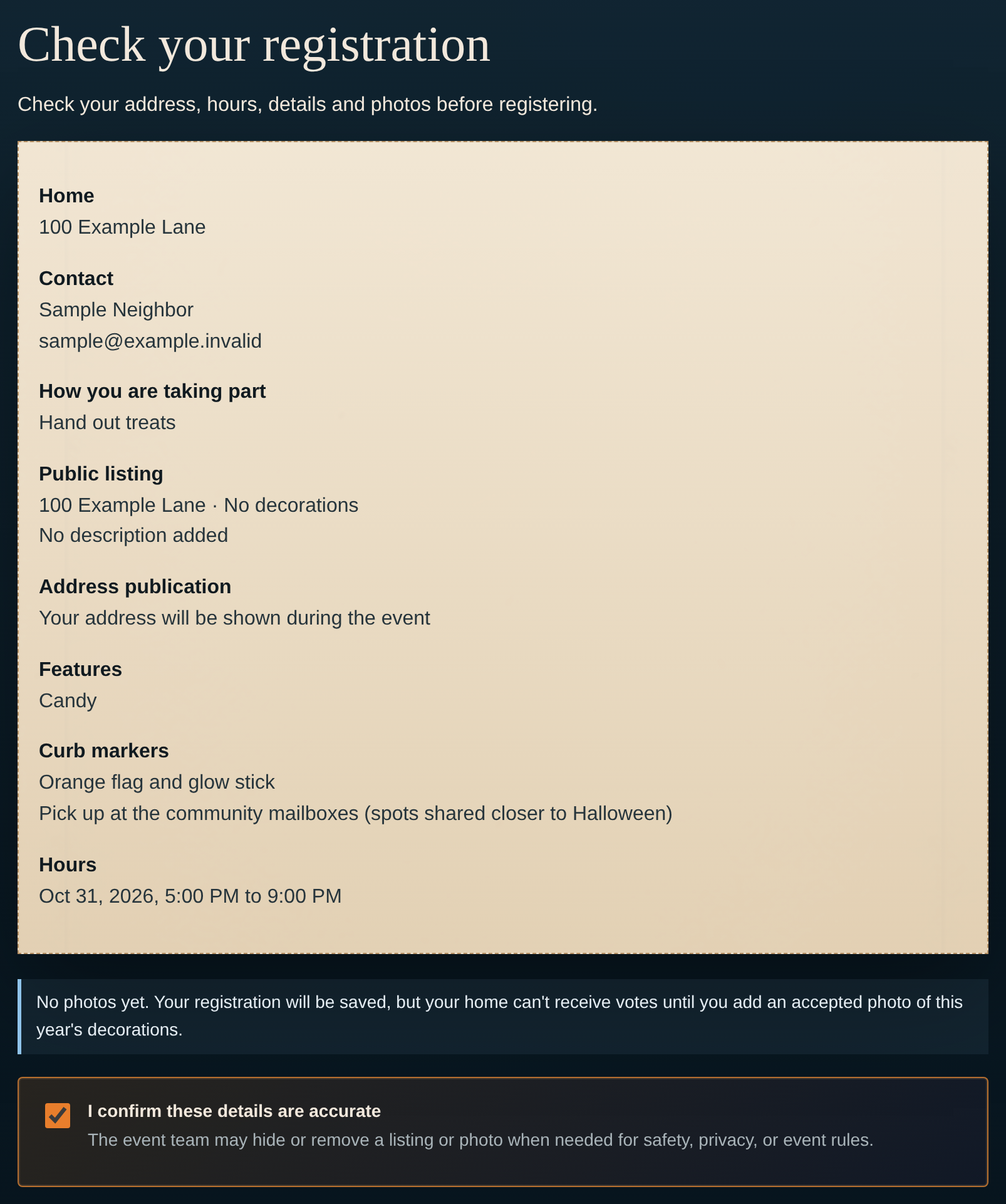
- Your answers, listed for one last check.
- Read each answer in the list under Check your registration.Each heading, such as Home and Contact, shows what you entered.
- Click Back to change an answer.The form returns to the previous step. Your other answers stay as you entered them.
- Read I confirm these details are accurate.The box is already checked.
- Click Register my home.Your registration is sent. A sign-in email goes to the address you gave.
Expected result
Your registration is sent. You receive a sign-in email, and homes on the Twin Hills address list are approved automatically.
Troubleshooting
An answer in the list is wrong.
CauseThe answer was typed or chosen incorrectly on an earlier step.
FixClick Back until you reach that step, change the answer, then click Continue to return to step 5.
You do not see Register my home.
CauseThe button appears only on step 5.
FixClick Continue through each step until Check your registration opens.
A red message appears when you click Register my home.
CauseA required answer is missing or does not fit.
FixRead the message, click Back to the step it names, correct the answer, then return to step 5.